
Instructions
How to install your Eurosimka eSIM on Android
We walk through the standard Android path from Network & Internet and the fallback manual-activation flow.
If you use a Samsung Galaxy device, open the dedicated Samsung guide first. The menu names are different from the generic Android path.
Before you start
- Keep the phone on stable Wi‑Fi before you begin.
- Have the Eurosimka QR code or activation code ready.
- If the phone already has multiple SIMs, know which line should carry mobile data afterward.
Using Samsung?
We have a separate Samsung guide with the correct menu labels and a Mobile data check.
Step 1
QR-code setup
The standard path for most Android devices with eSIM support.
Open the SIM settings
Go to Settings → Network & Internet → SIMs, mobile network, or the equivalent SIM section on your device.
Add the eSIM
Tap the plus next to SIMs or Add eSIM, then choose the QR-code setup flow.
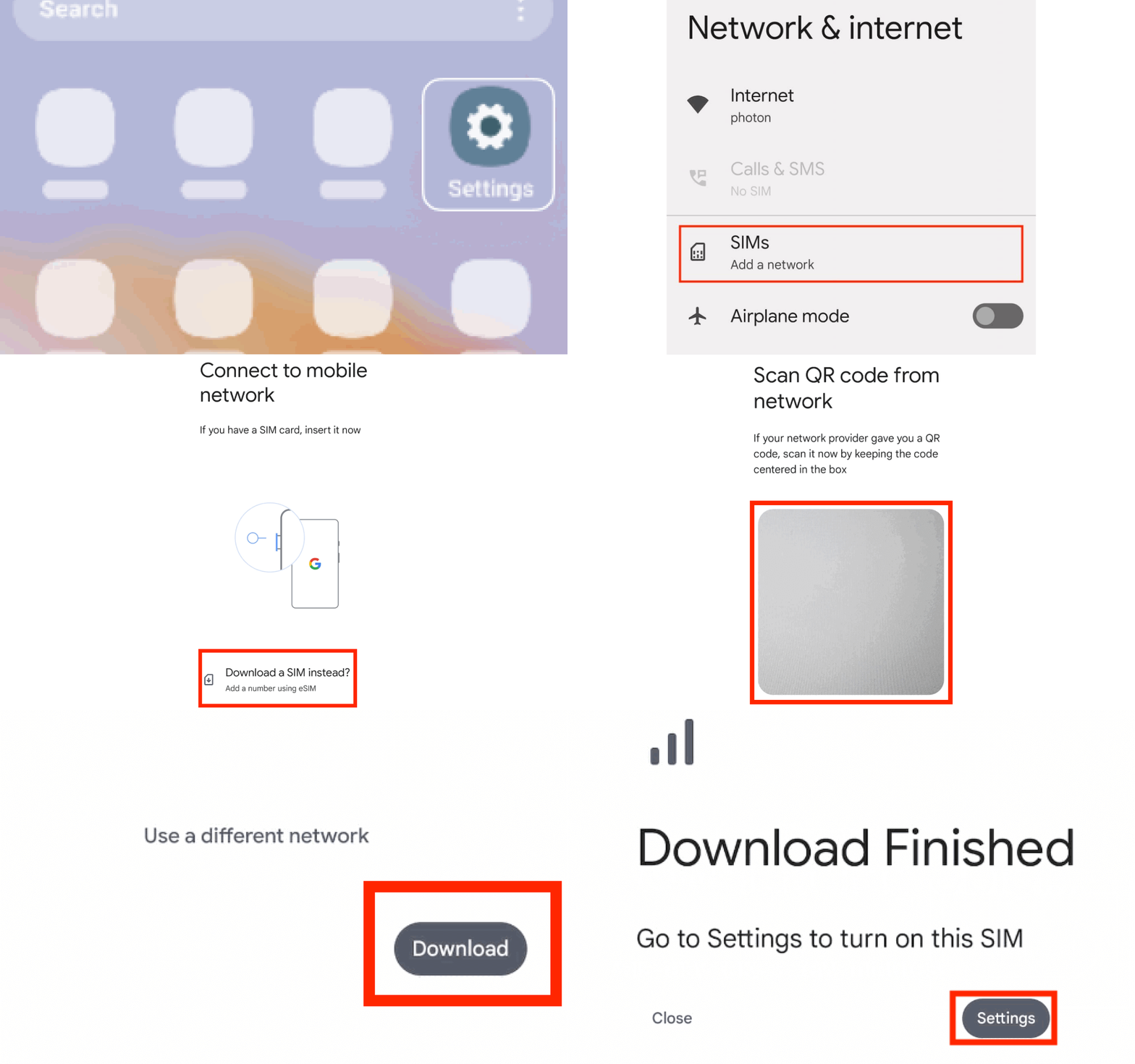
Scan the code and download the profile
Scan the Eurosimka QR code and confirm the eSIM download.
Step 2
Manual setup
Use this when the QR code does not scan or you are installing from a remote screen.
Open manual entry
Inside the eSIM flow, find an option such as Need help? or Enter manually.
Paste the activation code
Paste the code from your dashboard or delivery email and continue.
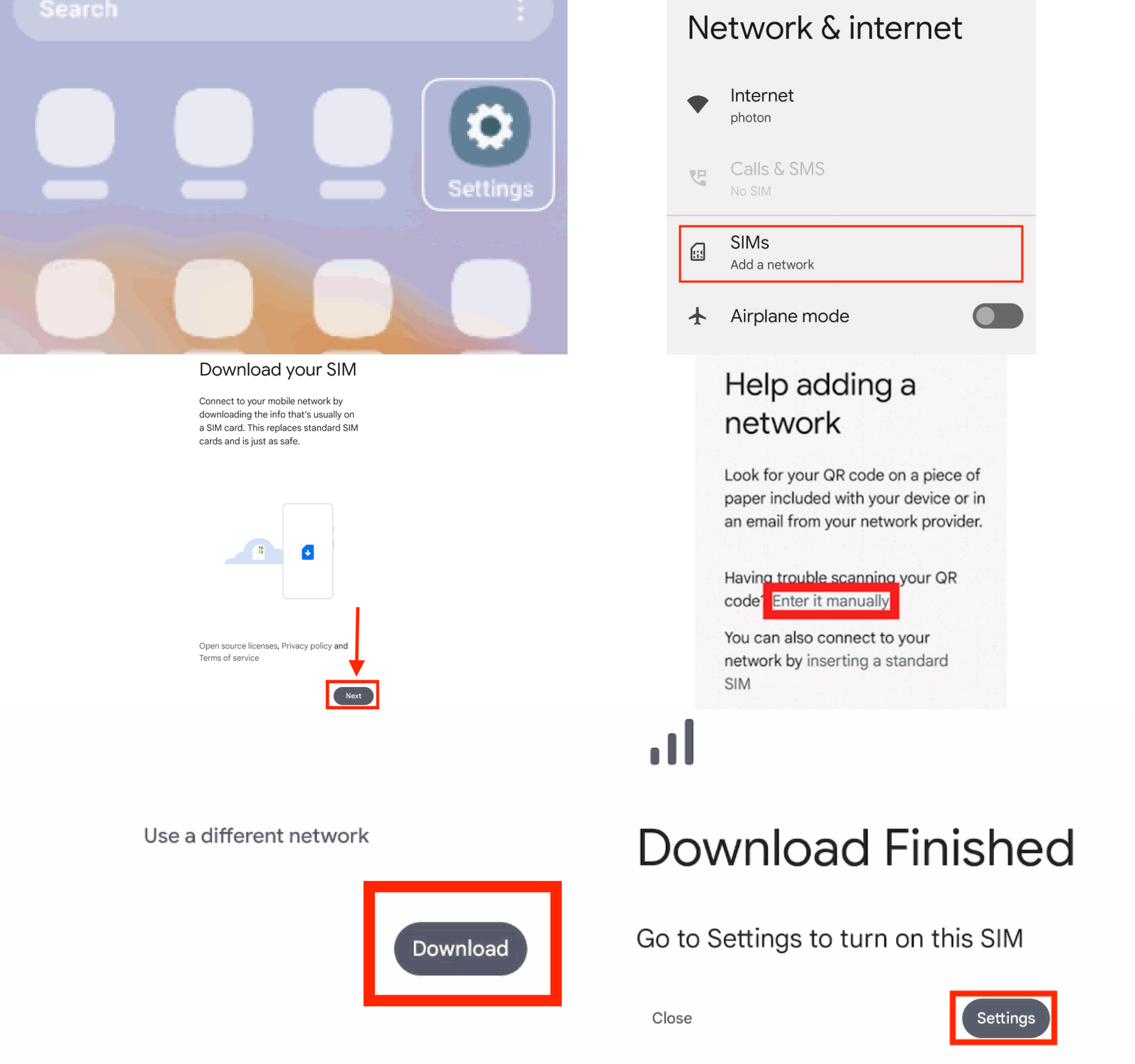
Finish the install
Wait for Android to download and add the eSIM profile. It can take a couple of minutes.
Step 3
Turn the eSIM on for internet
After installation, make sure Android is actually using the new line.
Open the installed eSIM
Return to the SIM settings and select the Eurosimka line.
Enable eSIM and roaming
Set the eSIM as active for mobile data and enable Data Roaming if your device requires it.
Check the default mobile-data line
Make sure Eurosimka is the line selected for mobile internet.
Related guides
Related guides
FAQ
Frequently asked questions
If Android does not activate the eSIM
Send us the phone model and the exact error message. A screenshot or short video helps even more.