
Instructions
How to install your Eurosimka eSIM on Samsung Galaxy
A dedicated Samsung path: SIM Manager, QR install, manual activation code, and the Mobile data check.
Samsung uses different menu labels from the generic Android flow, so this page follows the Galaxy path directly.
Before you start
- Keep the device connected to stable Wi‑Fi.
- Have the Eurosimka QR code or manual activation code ready.
- If two SIMs are active, check which line currently handles mobile data.
Step 1
QR-code setup
This is the recommended Samsung path.
Open SIM Manager
Go to Settings → Connections → SIM Manager.
Add the eSIM
Tap Add eSIM and choose the operator QR-code path.
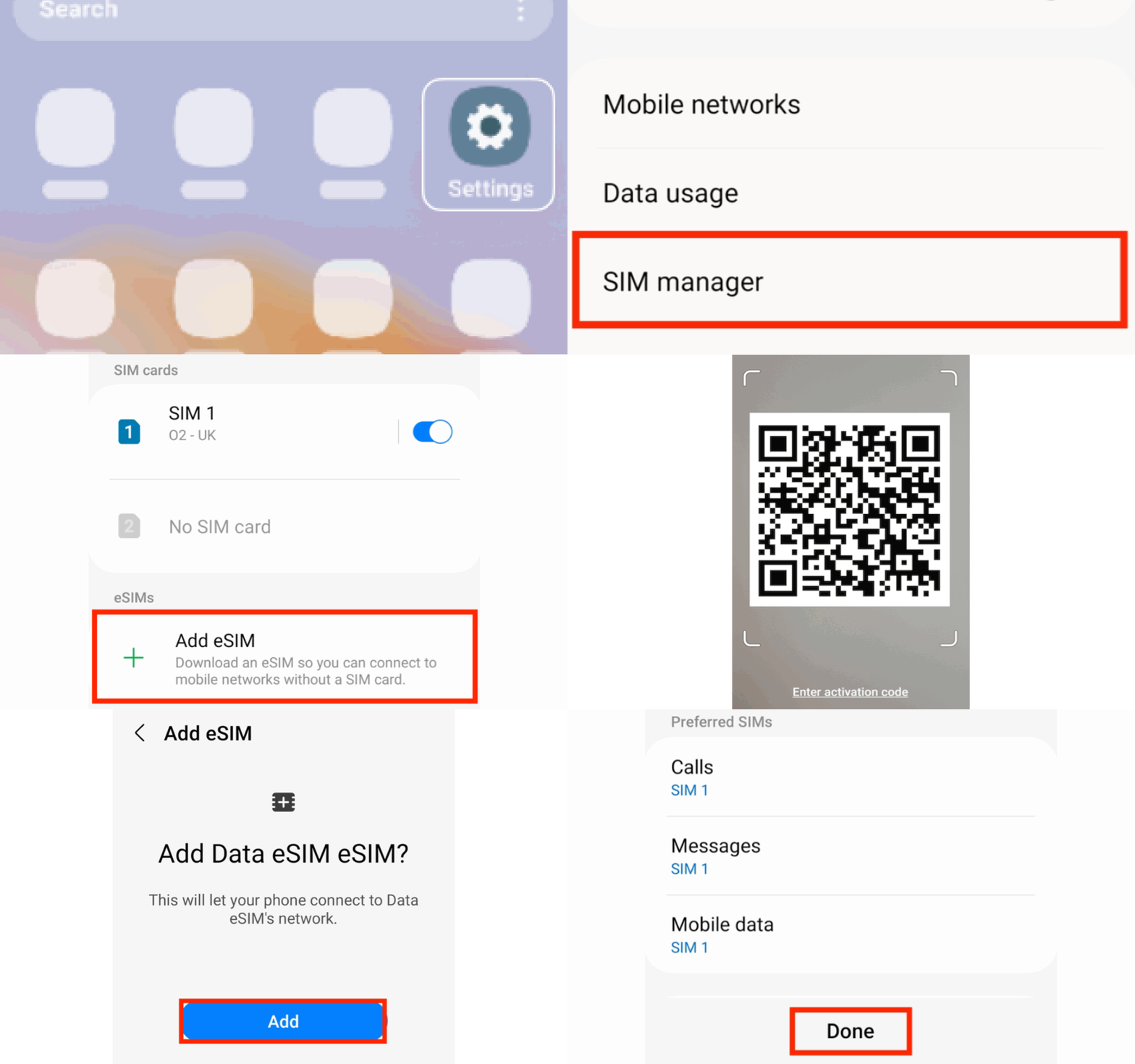
Confirm the install
Scan the Eurosimka QR code, tap Add, and wait for the profile to finish installing.
Rename the line
Open the new eSIM and give it a clear name such as Eurosimka.
Step 2
Manual activation code
Use this when the QR flow is unavailable.
Open the manual activation option
Inside Add eSIM, choose Enter activation code.
Paste the code
Paste the code from your Eurosimka dashboard or delivery email.
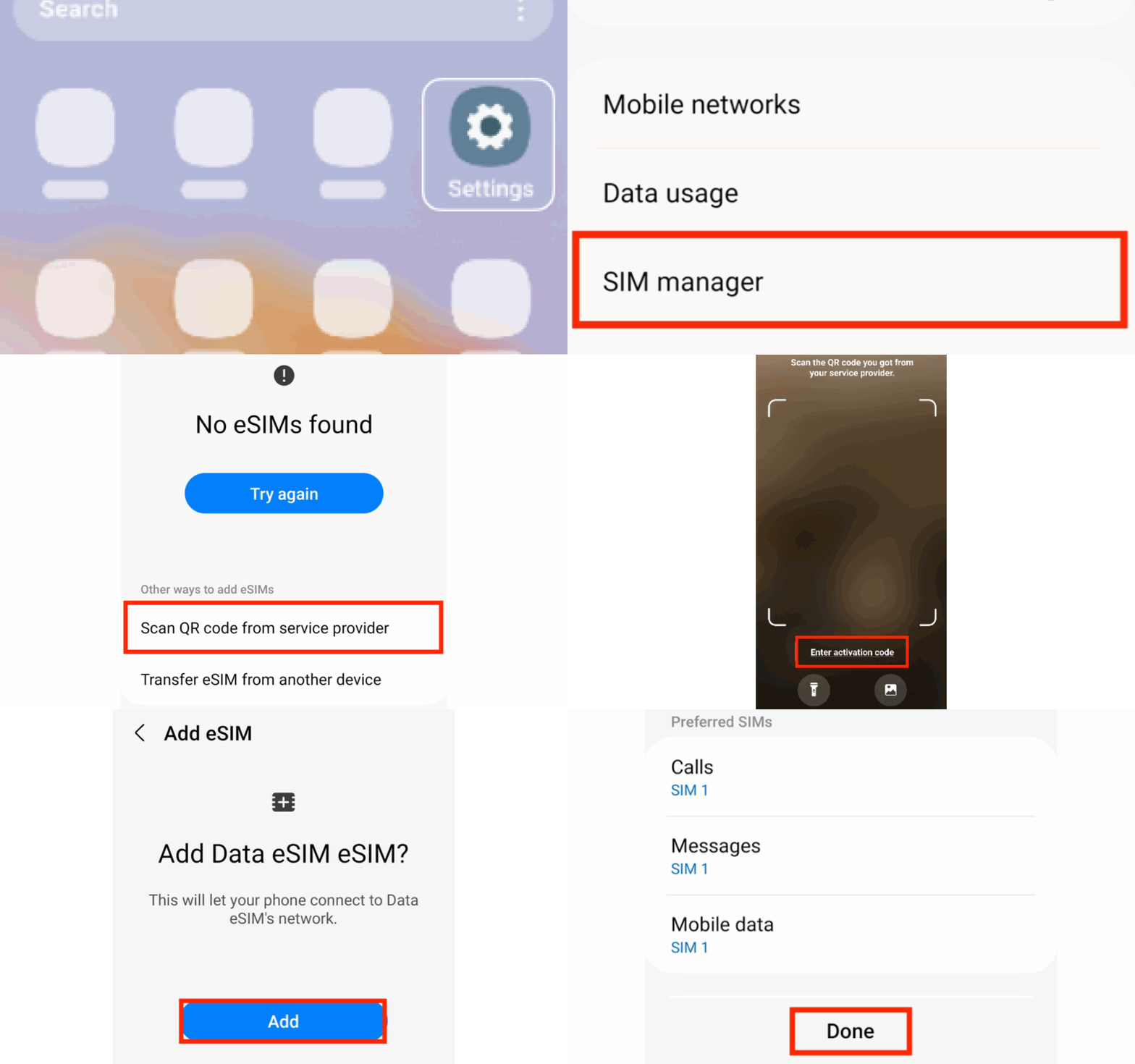
Let Samsung finish the setup
Confirm the connection and wait until the Galaxy device finishes adding the profile.
Step 3
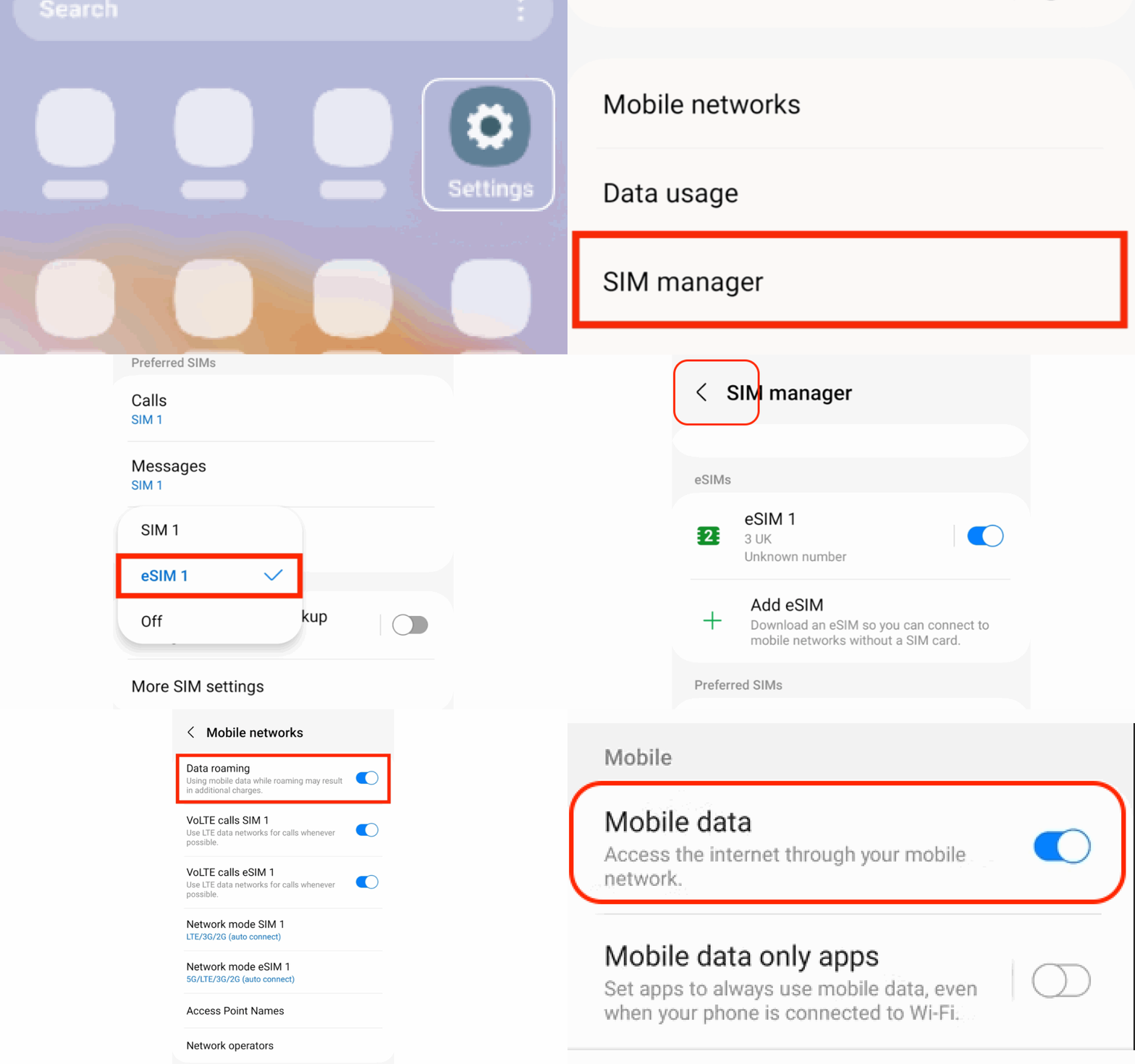
Check Mobile data and roaming
This is critical: the eSIM can be installed correctly, but internet still fails if Samsung keeps using another line for data.
Select Eurosimka for Mobile data
Inside SIM Manager, set Eurosimka as the line used for mobile data.
Enable Data Roaming
Open Connections → Mobile networks and make sure Data Roaming is turned on.
Verify Mobile data itself is on
Check that mobile data is enabled for the Eurosimka line after the install.
Related guides
Related guides
FAQ
Frequently asked questions
If Samsung still does not connect
Send us the Galaxy model and confirm whether Mobile data and Data Roaming are enabled on the Eurosimka line.